
Everything Clock Loom does
Clock Loom combines a time tracker, a day and week planner, projects, tasks, a meetings calendar and a notebook in one web app. This page describes each feature in plain terms and says which plan it belongs to. Free means it is on the Free plan; Pro means it needs Pro or the 30-day trial.
Time tracking Free
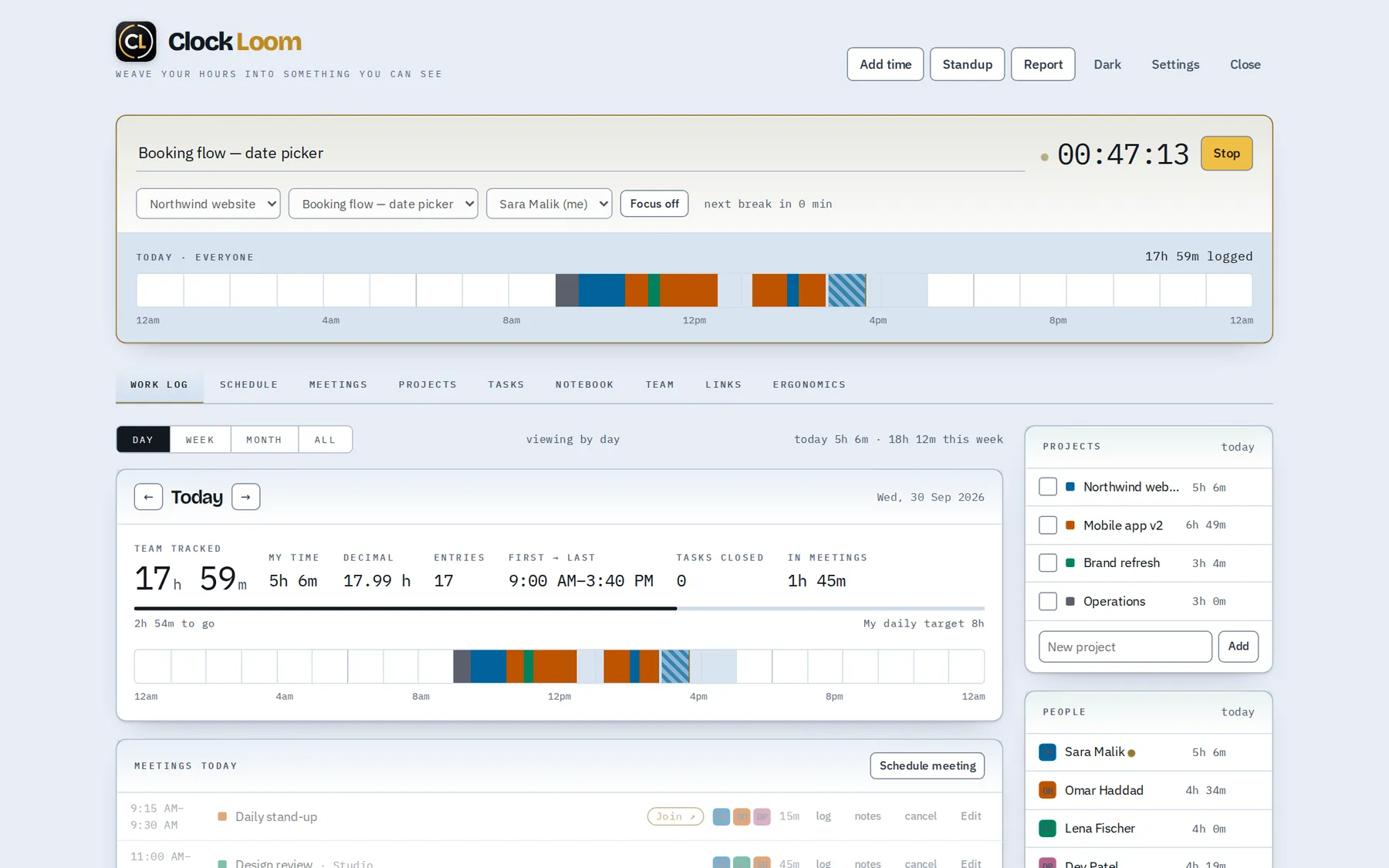
Type what you are working on and press Start. Clock Loom times it against a project, a task and a person, and draws it on a 24-hour timeline of your day.
- One-click timer with a keyboard shortcut, or add and edit entries by hand
- Focus sessions with a timed break afterwards
- A daily target with a progress bar and a streak
- If you close the tab with the timer running, Clock Loom offers to trim the entry when you return
Idle check Free
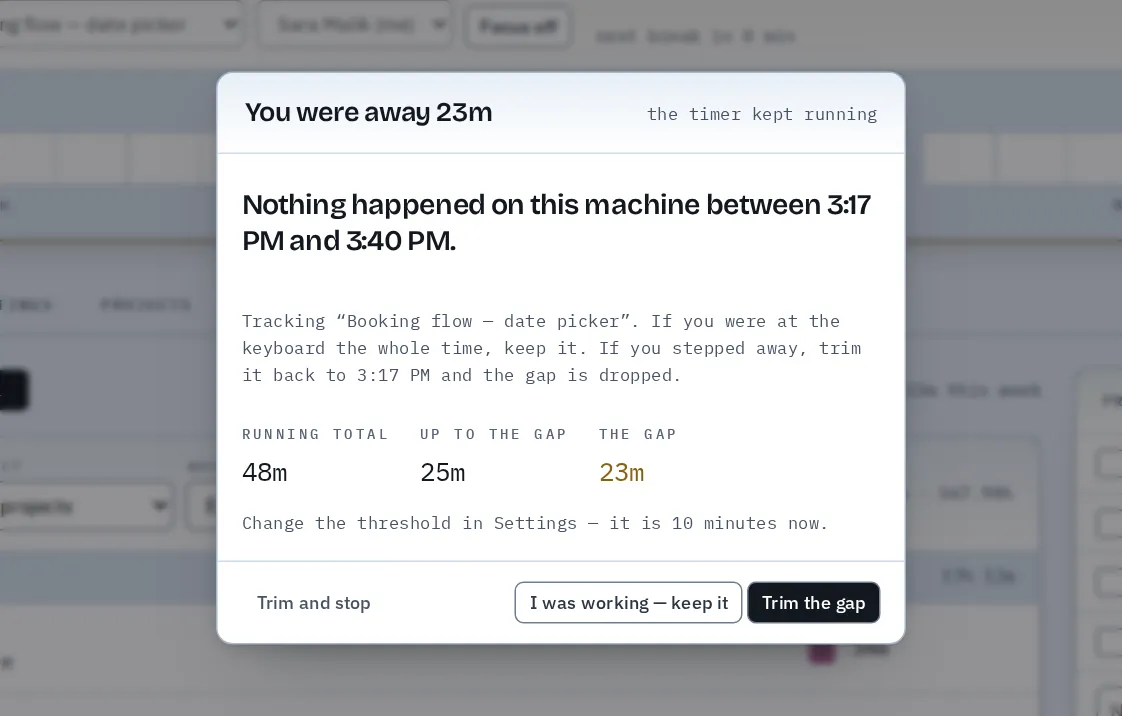
If the timer keeps running while nothing happens on your computer, Clock Loom asks what to do with that gap when you come back, instead of counting it as work.
- Choose to keep the time, trim the gap, or trim and stop
- Asks after 10 minutes by default; change the wait or turn it off in Settings
Work log: day, week, month and all time Free Pro
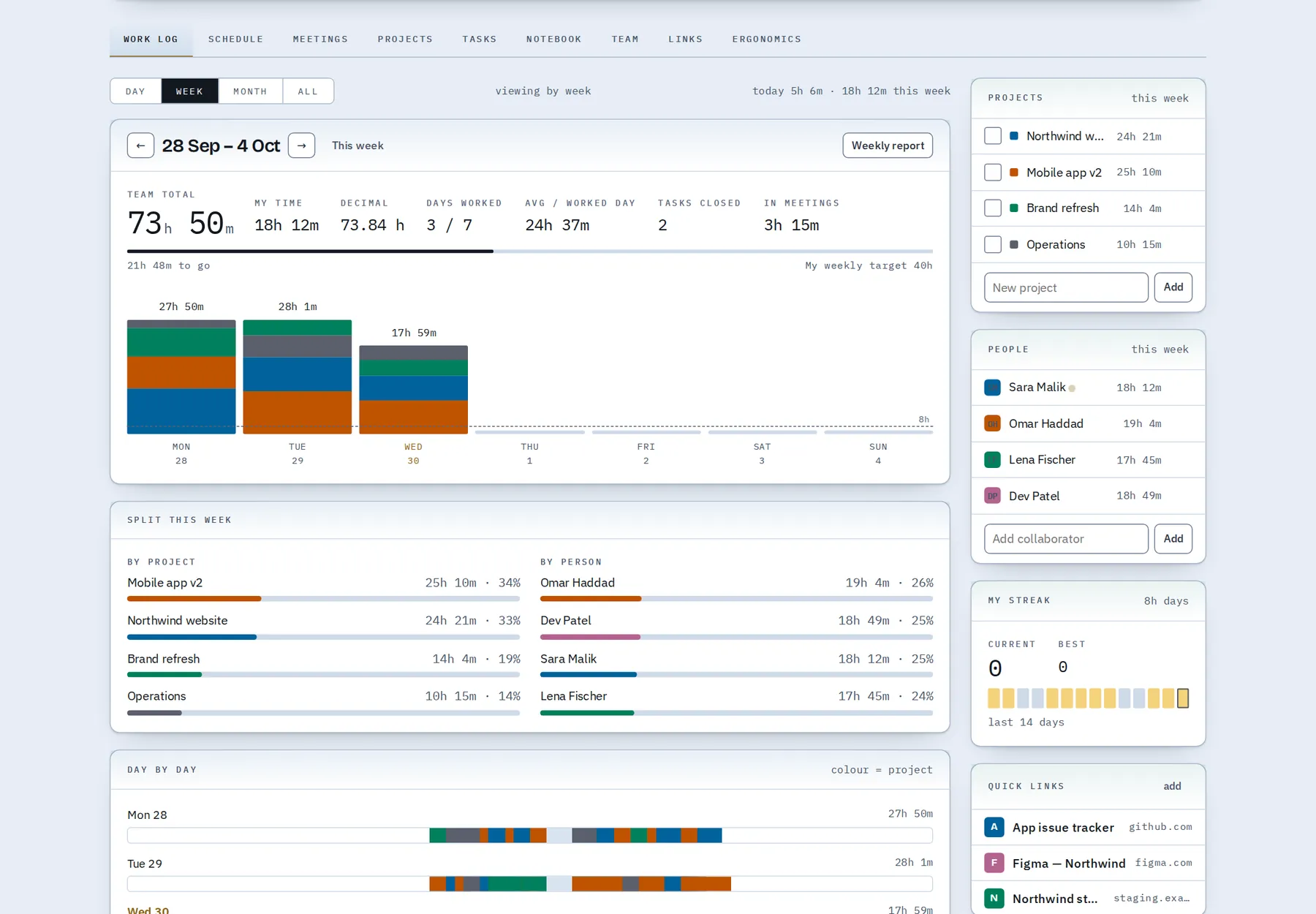
The Work log shows where your time went at four zoom levels. Day and week are on the Free plan; month and all-time history are part of Pro.
- Day: totals, first and last entry, meetings, tasks due and every entry
- Week: hours per day, split by project and by person
- Month: a calendar of every day's hours
- All: a searchable, filterable list of every entry, with CSV export on Pro
Schedule: a day and week planner Pro
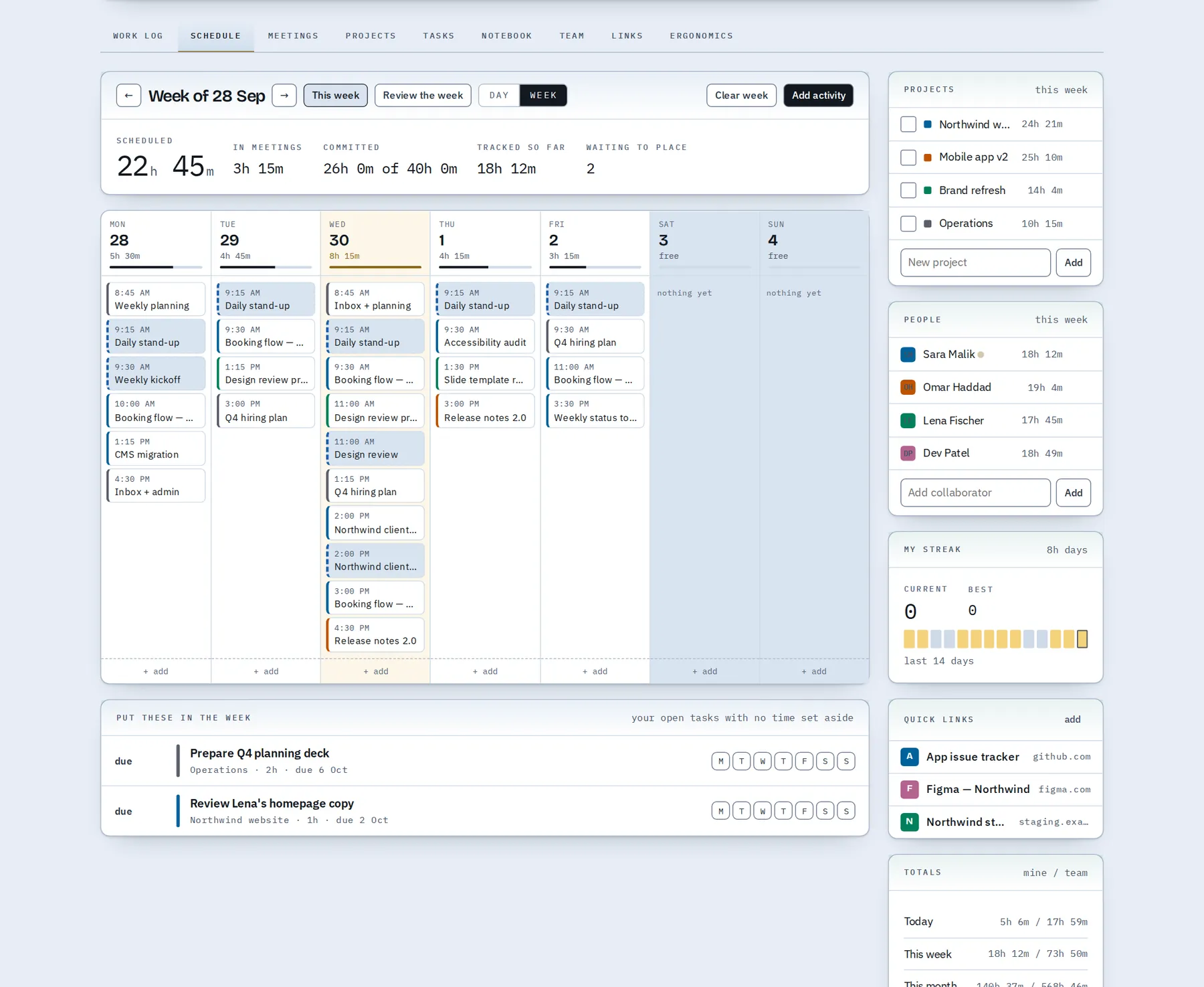
The Schedule is a time-blocking planner. You lay out the day or the whole week in blocks, start a block with one click, and see planned time next to tracked time.
- Day view: blocks between your meetings, with scheduled, committed and tracked totals
- Week view: all seven days side by side, with how full each day is
- Open tasks with no time set aside are listed, ready to drop onto a day
- A new block can also become a task, and the two stay in step
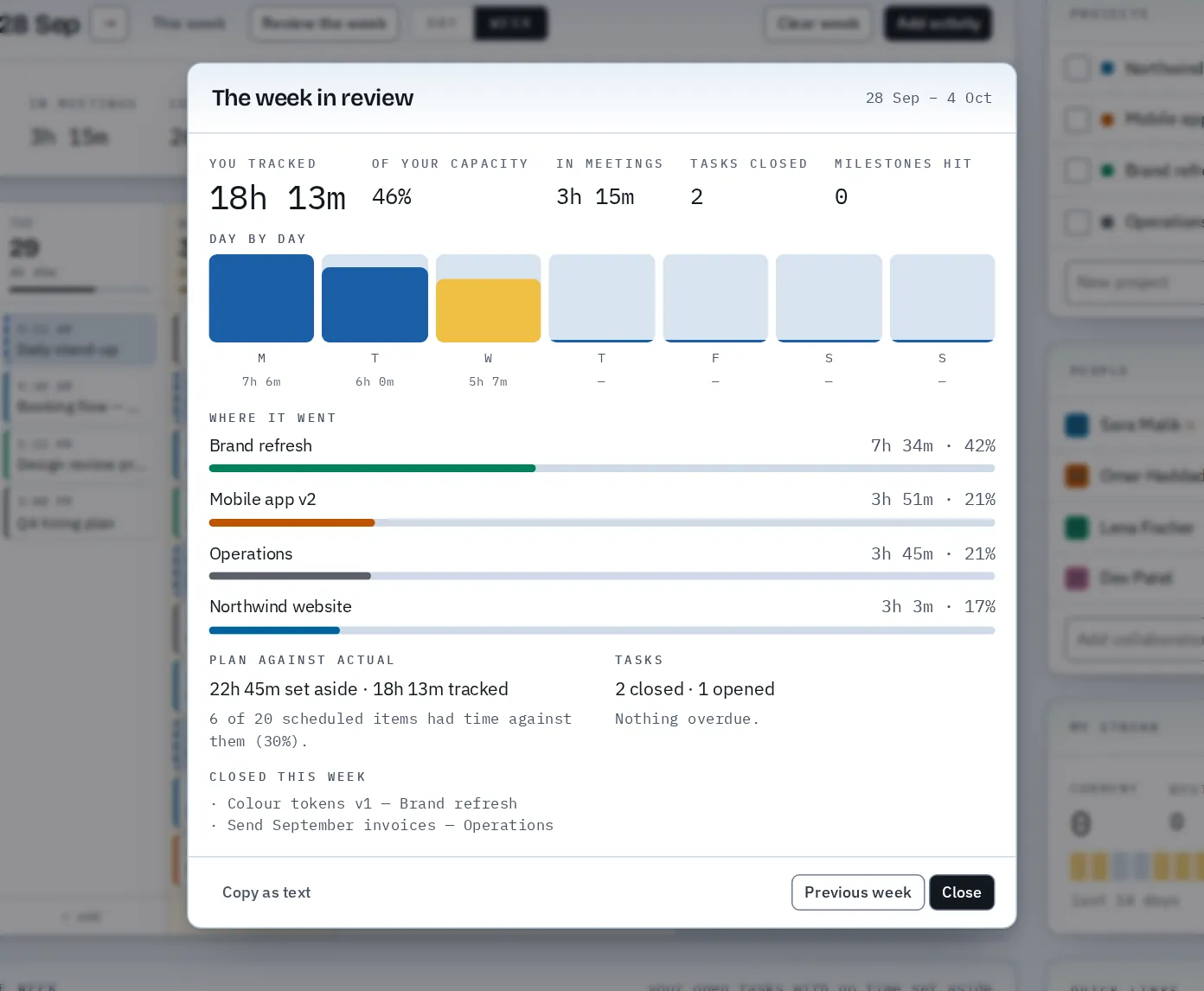
Review the week Pro
One click produces a look back at the week: hours tracked against your capacity, a bar for each day, where the time went, how much of your plan you followed, and what got finished.
- Plan against actual: scheduled hours compared with tracked hours
- Tasks closed and opened, anything overdue, milestones reached
- Copy the summary as text
Projects, budgets and templates Free Pro
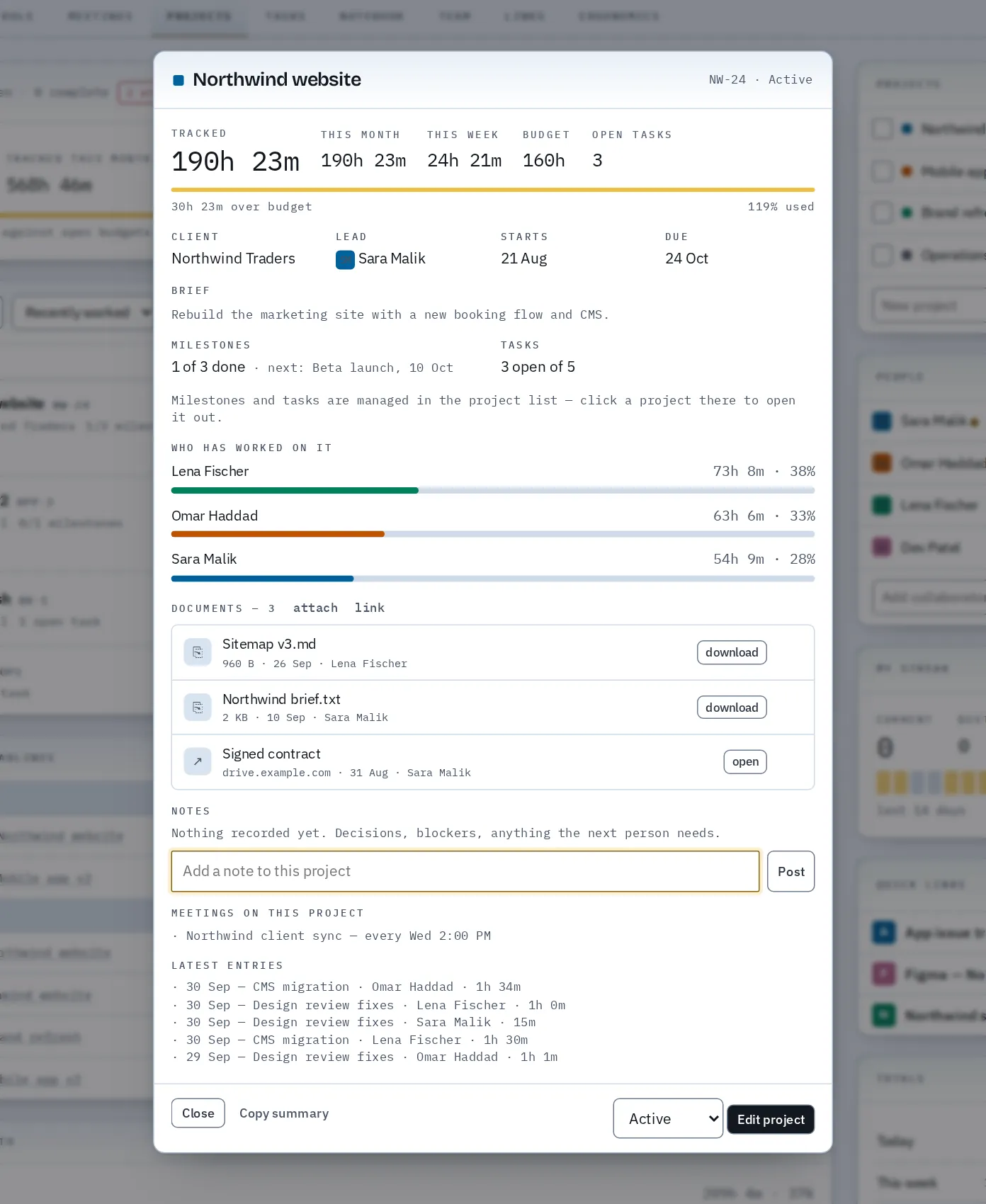
Each project has its own page with hours tracked, a brief, people, documents, notes and milestones. Free accounts keep up to 3 active projects; Pro adds hour budgets, milestones and unlimited projects.
- Hour budgets with a bar that turns red when a project goes over
- Milestones with due dates that you tick off
- Attach files up to 25 MB, or link to documents that live elsewhere
- Save a project as a template and start the next one with its tasks and milestones already in place
Tasks: lists, board and repeating tasks Free
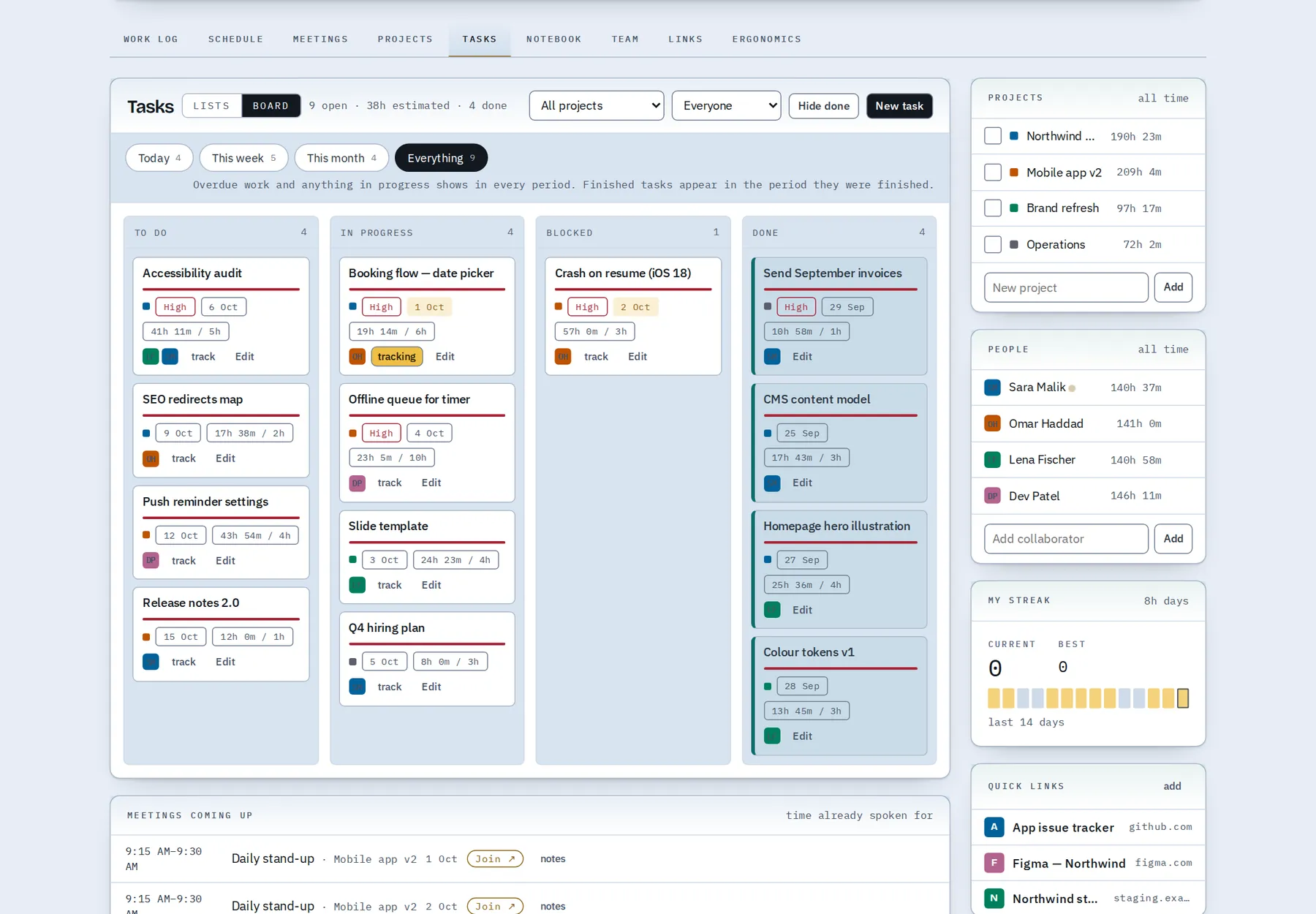
Tasks have a project, assignees, a due date, an estimate and a priority. See them as lists or as a board with To do, In progress, Blocked and Done columns.
- Drag cards across the board
- Start the timer straight from a task
- Repeating tasks: every day, weekday, week, two weeks or month. Closing one opens the next
Meetings calendar Free
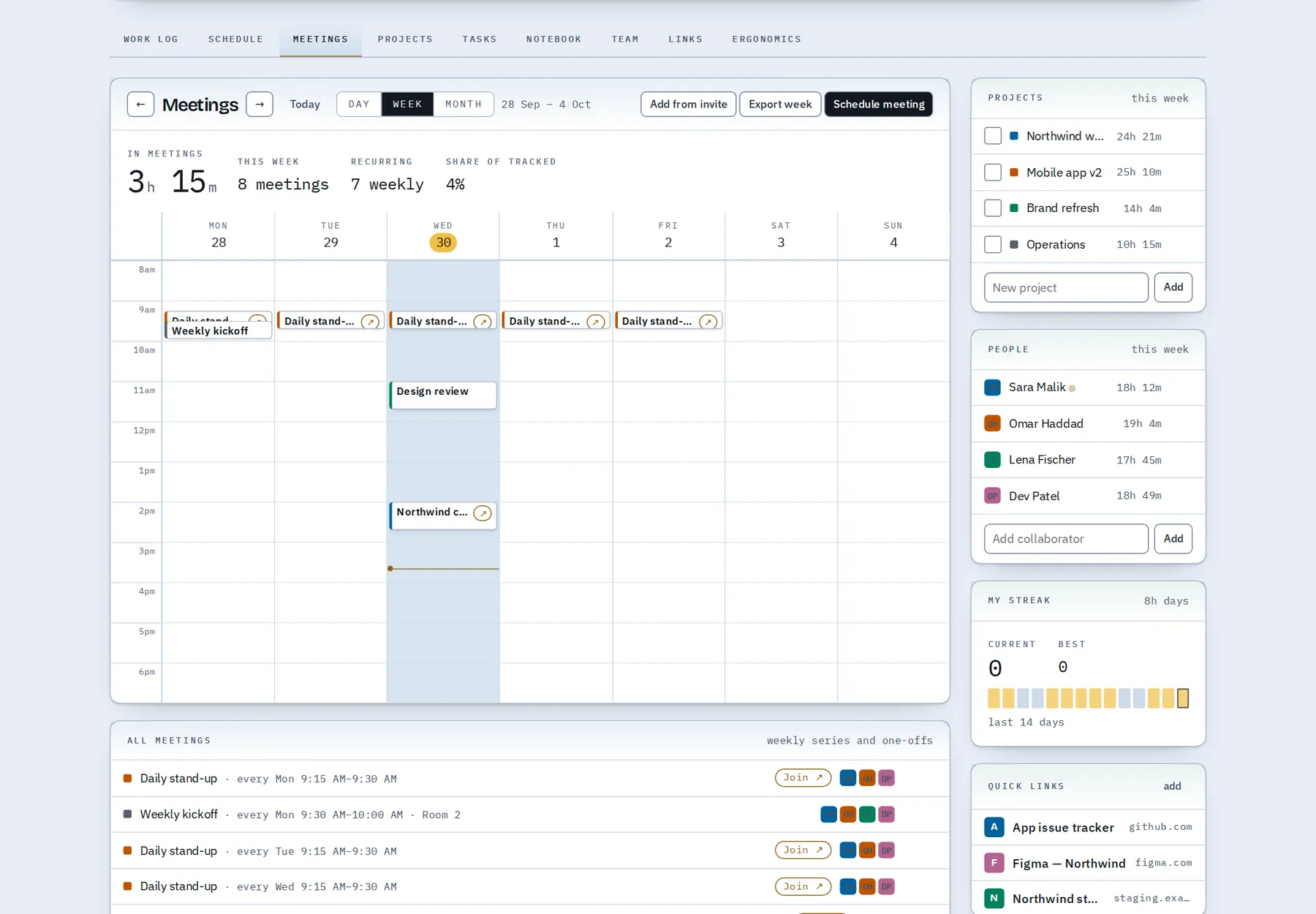
Meetings sit on a weekly calendar, repeat weekly or happen once, and carry a join link, attendees, a place and notes.
- Log a meeting's time in one click
- Turn lines of meeting notes into tasks
- Import a meeting from a calendar invite, or export the week as a calendar file
- A reminder card before the meeting starts
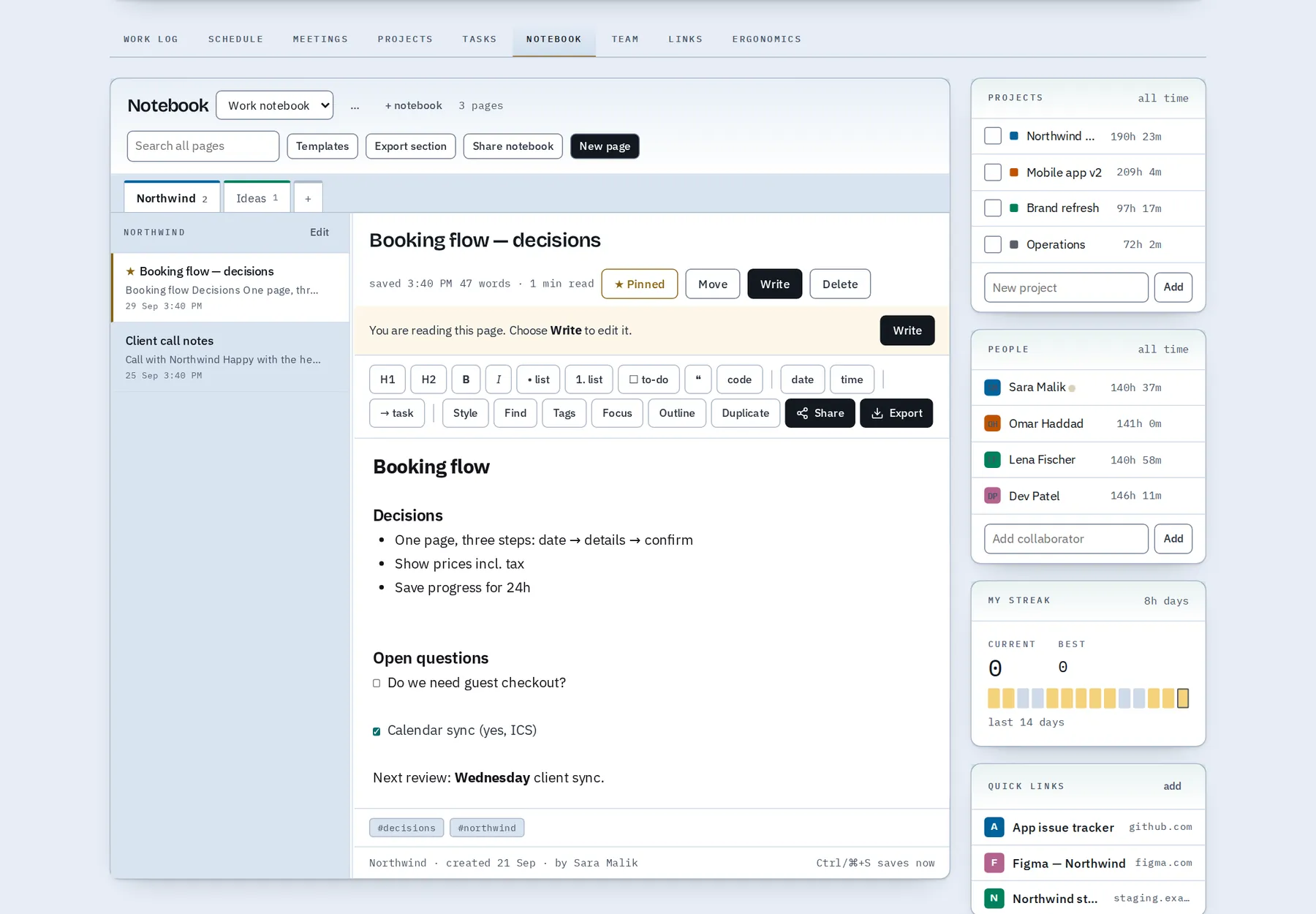
Notebook Free Pro
Notes live next to your time, in notebooks, sections and pages with light Markdown, tags, pins and search.
- Checklists, headings and quotes
- Share or export a page or a whole notebook as Word, PDF, Markdown or a web page
- Pro adds page templates and turning a page into a task
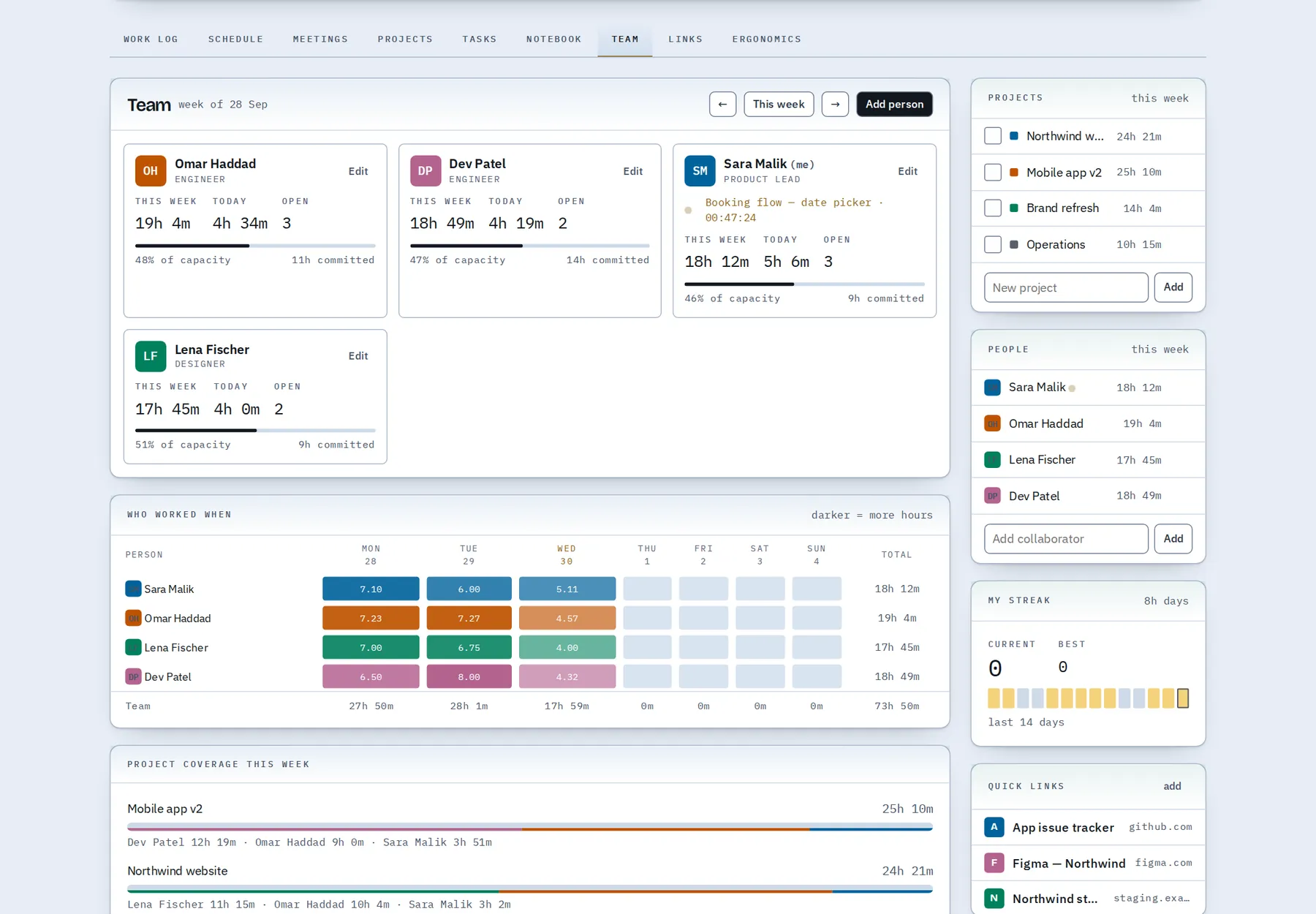
Team and capacity Pro
Add collaborators to your board, assign them tasks and log time for them. The Team view shows each person's hours against capacity and a heatmap of the week's load.
- Per-person daily capacity
- See who is overloaded and who has room
- Standup notes drafted for anyone on the team
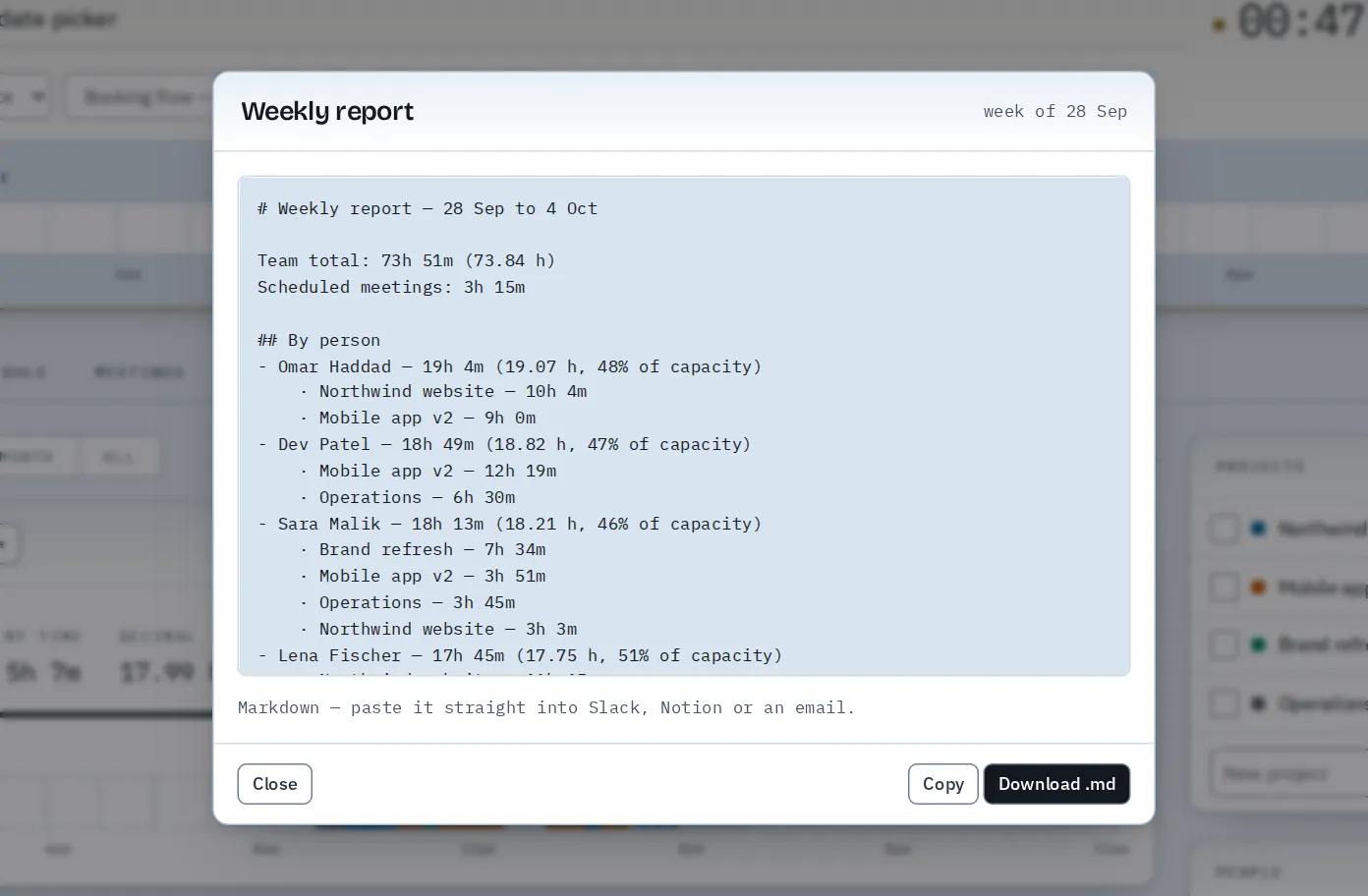
Reports and standup notes Pro
Clock Loom writes the weekly report and the standup notes from what you tracked, so you copy them instead of composing them.
- Weekly report: totals, hours per person against capacity, hours per project
- Standup: yesterday, today and blockers
- Copy as text, download as Markdown, or print any view
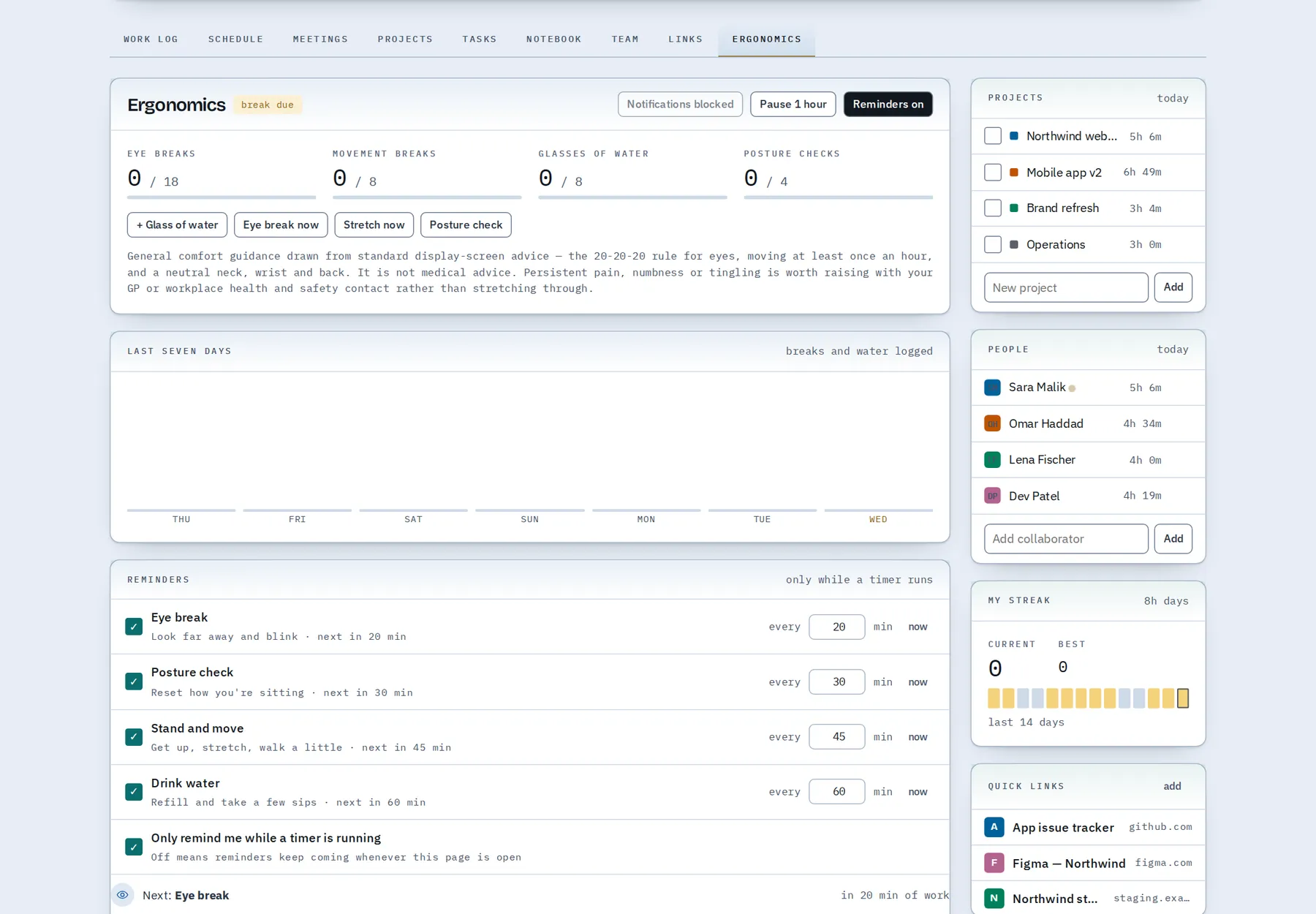
Ergonomics and check-in Free
Clock Loom reminds you to rest your eyes, check your posture, move and drink water, by default only while a timer is running.
- The 20-20-20 eye break, guided
- A daily check-in: how the day felt, what happened, what is blocking you
Sync, offline and backups Free
Your board is saved to your account and follows you to every device. It keeps working without a connection and syncs when you are back online.
- If two devices change the board at once, you choose which version to keep
- Download a full JSON backup at any time, on every plan
- Sign in with email and password, or with Google
Common questions
Which Clock Loom features are free?
Time tracking, the day and week work log, tasks, meetings, the notebook, links, ergonomics reminders, up to 3 active projects, file attachments, sync across devices and the full JSON backup are on the Free plan.
What does Clock Loom Pro add?
The Schedule (day and week planner), the Team view, month and all-time history, weekly reports, standup notes, CSV exports, print views, project budgets and milestones, unlimited active projects, collaborators, notebook templates and turning a page into a task.
Can Clock Loom plan my week as well as track it?
Yes. The Schedule's week view shows all seven days side by side. You place time blocks and open tasks on days, and Review the week compares what you planned with what you tracked.
Does Clock Loom track time automatically?
No. You start and stop the timer or add entries by hand. Clock Loom does not record apps, websites or screenshots. If the timer runs while you are away, it asks whether to keep or trim that time.
Last updated: 5 October 2026. Plans, prices and limits are described as they are on that date; the pricing page is always current.
Try it on your own day.
Start with 30 days of Pro, with every feature open and no card. Or look around the live demo first.